🚀 Quick Start
This guide walks you through the Lighthouse Walrus Dashboard—from signing in with your Sui wallet to uploading and viewing files. No code required.
In this section, you will:
1. Sign in with Slush
- Open the Lighthouse Walrus Dashboard in your browser.
- Click Login using slush on the landing page.
- Approve the connection request in the Slush wallet popup.
- Once connected, your wallet address appears in the top right of the dashboard.
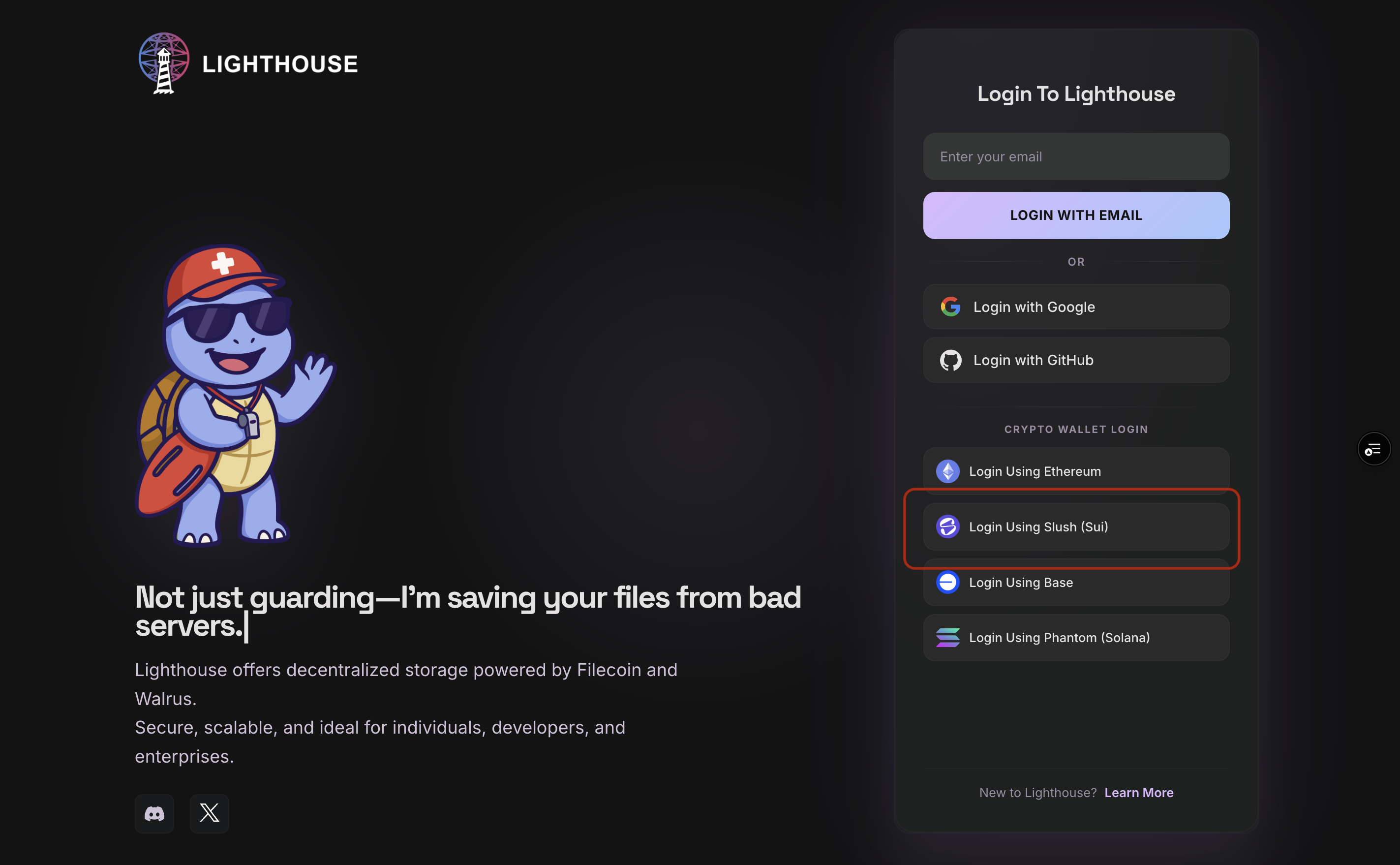
Make sure you have the Slush wallet extension installed and are on the correct Sui network before connecting.
2. Create an API key
API keys let you upload and manage files from the dashboard and connect programmatic workflows later.
- Go to the API Keys section in the dashboard.
- Give your key a name you will recognize. for example,
walrus-dashboardormy-first-upload. - Confirm creation and generate a new API key as shown in the image below.
- Copy the key and store it somewhere safe. You will need it for uploads and integrations.
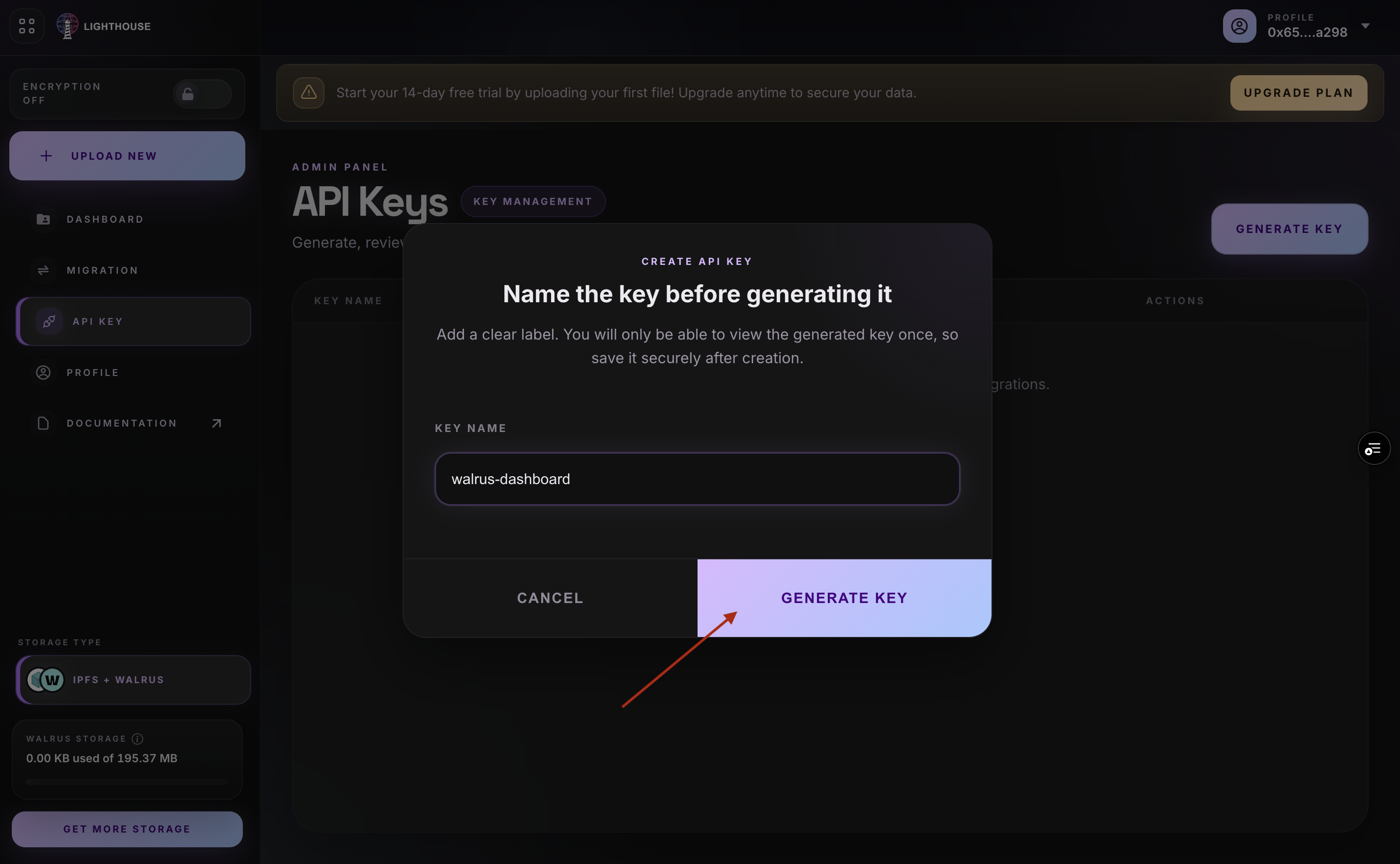
Treat your API key like a password. Do not share it publicly or commit it to version control.
3. Upload a file
- From the dashboard home, click on Upload and then Upload File.
- Choose a file from your computer using the file picker dialog.
- Wait for the upload to finish. The dashboard shows progress while your file is stored on Walrus and indexed for IPFS-style retrieval.
- On success, the file appears in your file list with its CID, name, and size.
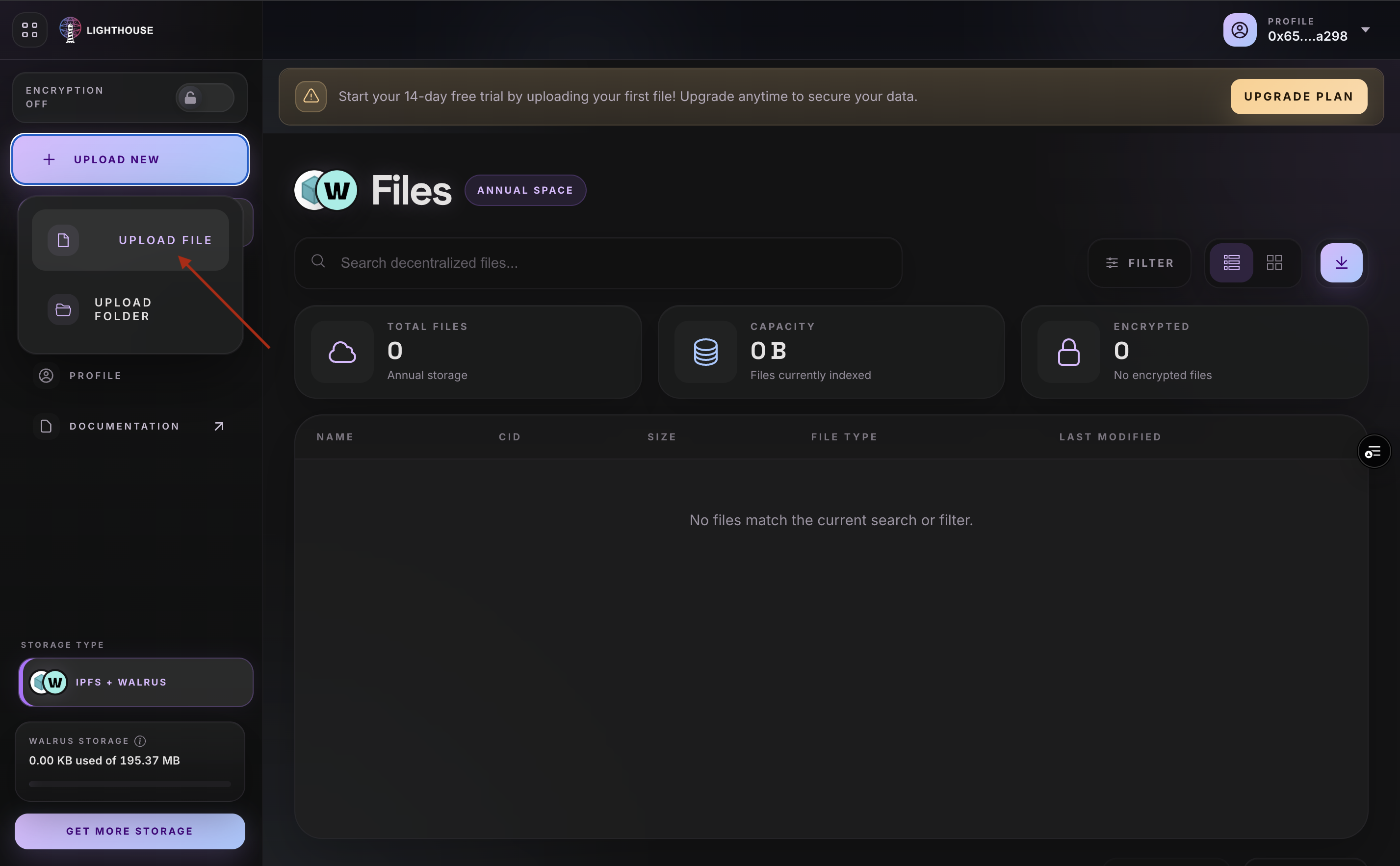
You can upload common file types like images, documents, JSON, and more. Each upload returns a CID you can use to retrieve the file later.
4. View your file
- Open the Files section in the dashboard to see all your Walrus-backed uploads.
- Find the file you just uploaded in the list.
- Click the file name to open a preview or details panel.
- From the file details, you can copy the CID, directly access a sharable link, and use the available options to download or preview your file.
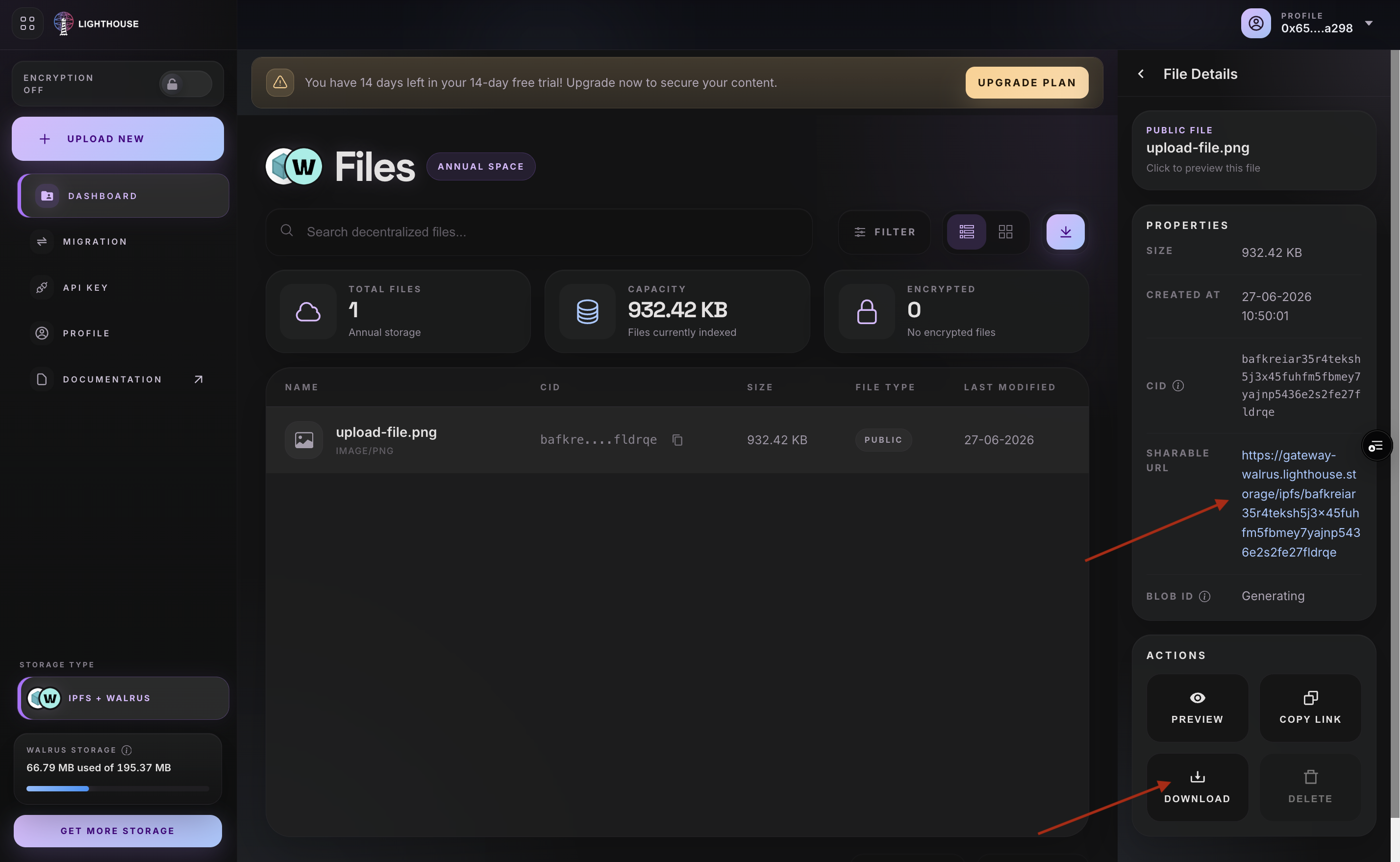
Your file is stored on Walrus and reachable through Lighthouse's IPFS-compatible retrieval paths—same CID workflow you already know from IPFS.
5. What's next?
You are set up on the Walrus dashboard. From here you can:
- Upload more files and build your Walrus storage library
- Migrate existing IPFS data to Walrus using the dashboard migration tools
- Explore encryption and access control for private files
- Use x402 payments to procure Walrus storage with stablecoins
More guides for SDK usage, encryption, and advanced workflows will be added to this docs section soon.