🔒 Revoke Access
If you've shared an encrypted file with another wallet and want to remove their access, you can revoke their permissions by removing them from the file's allowlist.
- UI
- Code
Revoking Access to an Encrypted File
Follow these steps from the Lighthouse Files Dapp:
Step 1: Locate Your Encrypted File
From your files dashboard, find the encrypted file whose access you want to revoke. Encrypted files are marked with a lock icon.
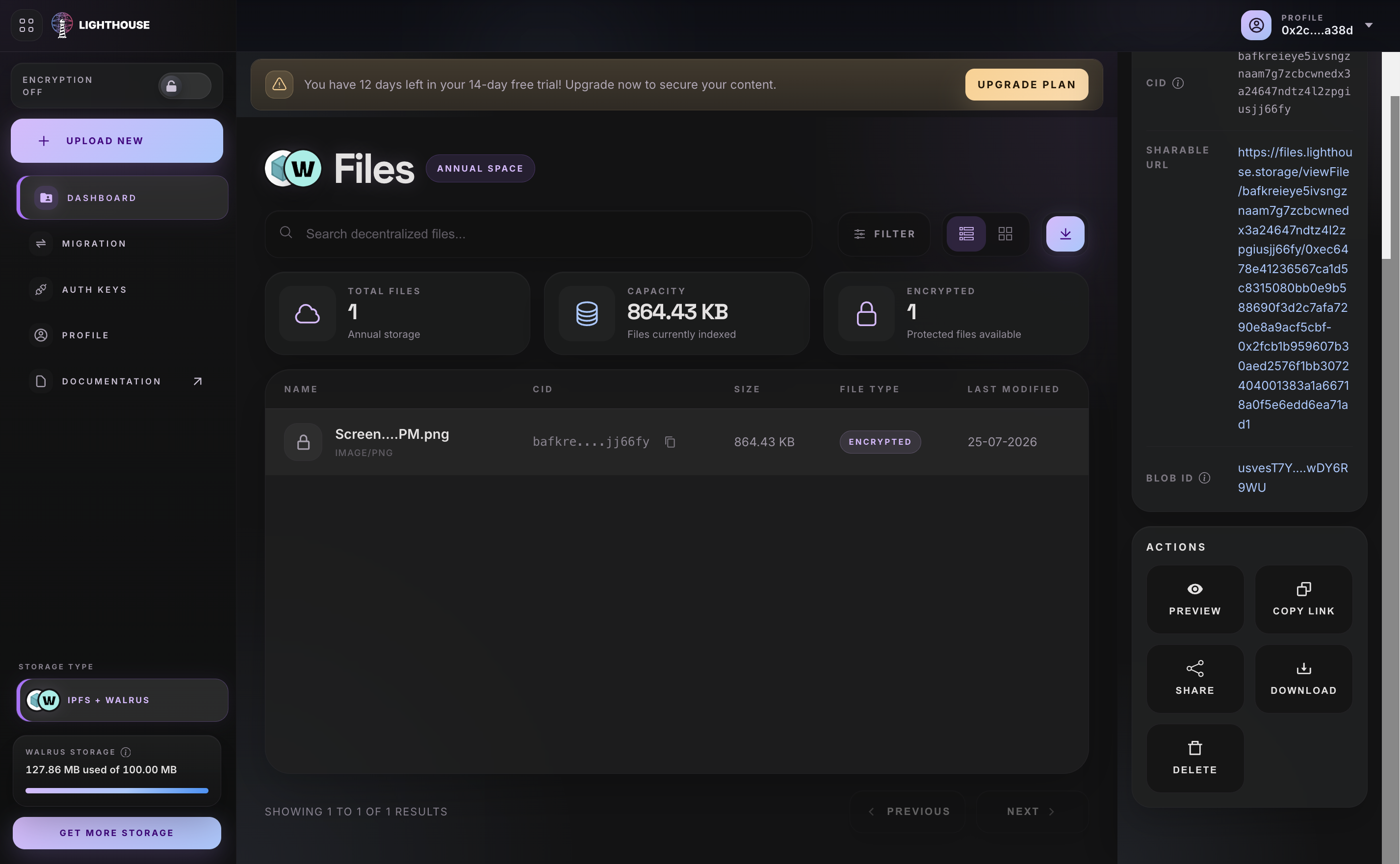
Click on the file to open its details view.
Step 2: Open the Access List
In the file details view, click the Share button to view the current allowlist. You'll see all wallet addresses that currently have permission to decrypt the file.
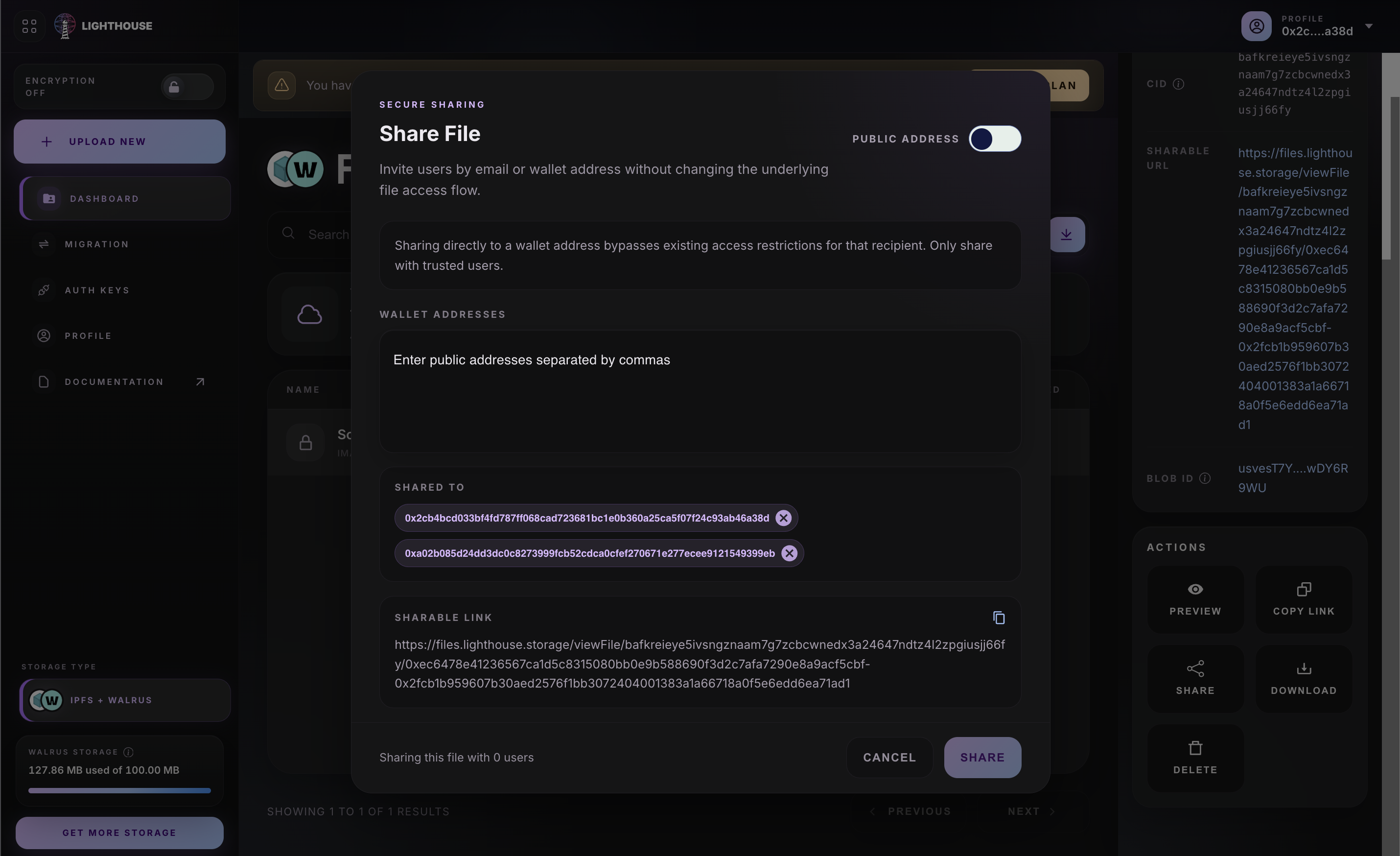
Step 3: Select the Wallet to Revoke
Find the wallet address you want to remove from the allowlist. Click the X button next to that address.
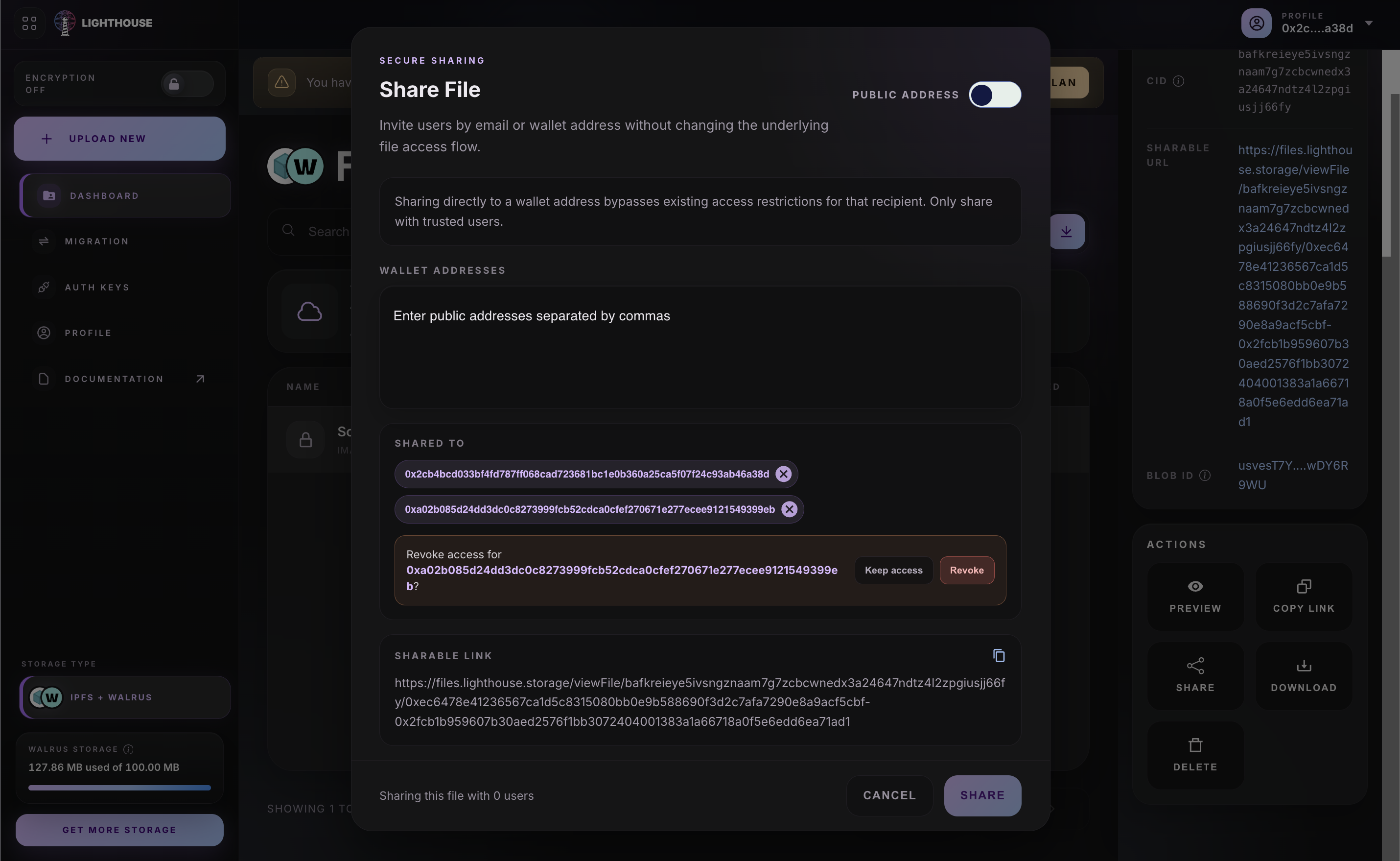
A confirmation dialog will appear asking you to confirm the revocation.
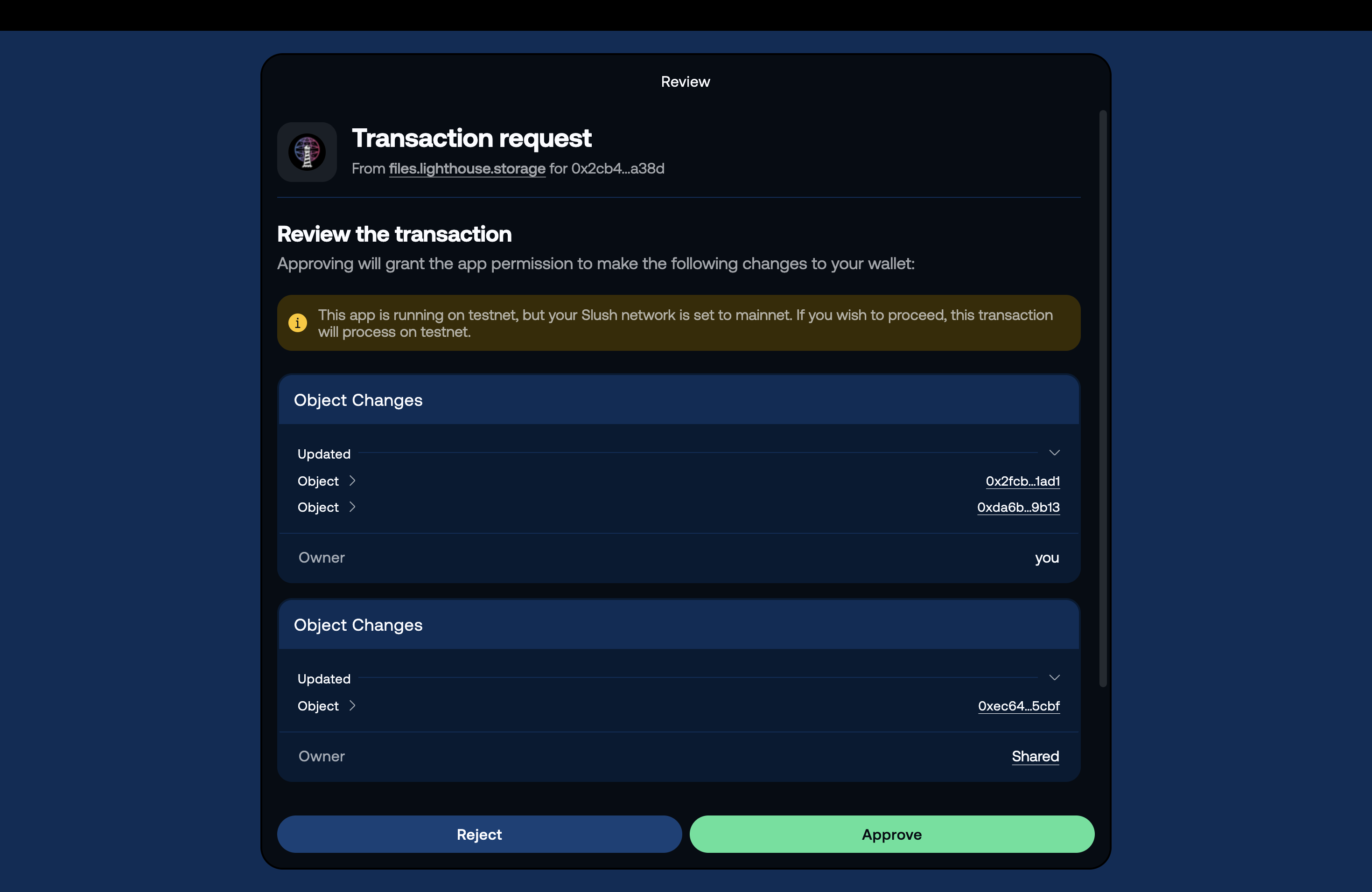
Step 4: Sign the Transaction
After confirming, your Sui wallet will prompt you to sign a transaction. This transaction:
- Calls the
remove_userfunction on the file'sFileAllowlistobject - Removes the specified wallet address from the allowlist
- Updates the on-chain access control
Step 5: Confirmation
Once the transaction is confirmed on-chain, the wallet address is removed from the allowlist. The revoked user:
- Can no longer prove ownership for decryption
- Will be denied by the SEAL key servers when attempting to retrieve decryption key material
- Cannot access the file contents, even if they still have the encrypted data
The wallet will no longer appear in your file's access list.
Revoking Access (Code)
Revoking access removes a wallet address from the FileAllowlist object, preventing them from decrypting the file.
The revoke flow requires:
- The
FileAllowlistobject ID for the encrypted file - The
Capobject ID owned by the file owner (proves authority over the allowlist) - The wallet address to revoke
- The original uploader's keypair (must own the
Cap)
Revoke Function
import { Transaction } from "@mysten/sui/transactions";

const LATEST_PACKAGE_ID =
  "0x89815d9feb1e8e526bed4b3c7ad35056a6abf692f293103f435d909180cecb7d";

export async function revokeAccess(
  keypair: Keypair,
  fileAllowlistId: string,
  capId: string,
  addressToRevoke: string,
) {
  const tx = new Transaction();

  tx.moveCall({
    target: `${LATEST_PACKAGE_ID}::allowlist::remove_user`,
    arguments: [
      tx.object(fileAllowlistId),
      tx.object(capId),
      tx.pure.address(addressToRevoke),
    ],
  });

  const result = await suiClient.signAndExecuteTransaction({
    signer: keypair,
    transaction: tx,
  });

  await suiClient.waitForTransaction({
    digest: result.digest,
  });

  return result.digest;
}
Where:
keypairis the keypair of the file owner (who holds theCap)fileAllowlistIdis the object ID of theFileAllowlistcapIdis the object ID of theCapreturned when the allowlist was created — required to authorizeremove_useraddressToRevokeis the Sui wallet address to remove from the allowlist. If the address isn't currently in the allowlist, the transaction aborts.
Checking the Current Allowlist
Before revoking, you may want to view the current allowlist to confirm which addresses have access. You can fetch the FileAllowlist object from Sui:
import { SuiClient } from "@mysten/sui/client";

const suiClient = new SuiClient({
  url: "https://fullnode.testnet.sui.io:443",
});

async function getAllowedAddresses(fileAllowlistId: string) {
  const object = await suiClient.getObject({
    id: fileAllowlistId,
    options: { showContent: true },
  });

  const content = object.data?.content;

  if (content?.dataType === "moveObject") {
    const fields = content.fields as Record<string, any>;
    // `users` is a VecSet<address>; its contents live under `fields.users.fields.contents`
    const allowed = (fields.users?.fields?.contents ?? []) as string[];
    console.log("Allowed addresses:", allowed);
    return allowed;
  }

  return [];
}
This returns the list of wallet addresses currently allowed to decrypt the file.